
Procurement
Container Load Optimiser: distribute your orders and make better use of available space
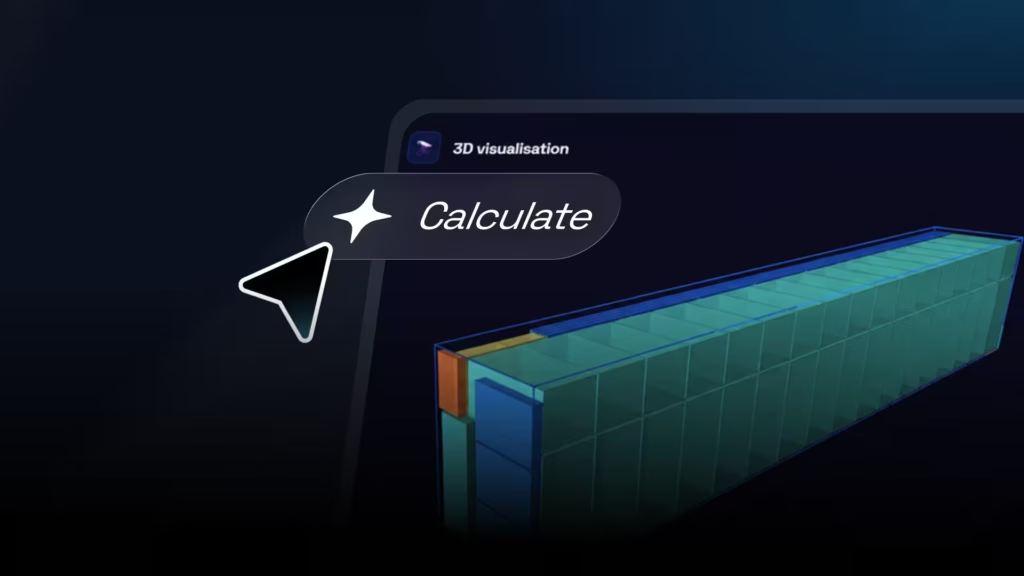
Imperia’s Container Load Optimiser is an online tool that helps you create a proposal for distributing your orders across available containers. It takes into account product dimensions and weight, as well as each container’s physical constraints.
Using your product master data, the quantities you need to transport and the available capacity, the tool calculates how to distribute the units and generates a 3D representation of the result.
You can see how many containers you need, assess how fully they are used and identify any order items left out because of space or weight limits.
What is a container load optimiser for?
Planning a container load involves more than adding up product volumes and comparing them with the total capacity available.
Each item’s shape, dimensions, orientation and weight affect how much of the available space can actually be used.
A container may have unused volume on paper but still be unable to accommodate certain units. Conversely, physical space may remain available even though the maximum weight limit has been reached.
The Container Load Optimiser accounts for these constraints in a single simulation.
You can use it to:
- Calculate how many containers you need.
- Distribute different items across containers.
- Analyse how much of the available space is used.
- Check how much of the maximum weight capacity is used.
- Identify units that cannot be loaded.
- Compare different container types.
- Evaluate different transport configurations.
- View the proposed load in 3D.
Define your product specifications
First, set up your product master data.
For each item, enter:
- Name.
- Length.
- Width.
- Height.
- Unit weight.
Enter dimensions in centimetres and weight in kilograms.
Use the measurements of the unit that will actually be transported. If the product is shipped in packaging, enter the dimensions of the packaged product rather than the product on its own.
Each item also has an identifying colour.
The tool uses this colour in the 3D visualisation to help you distinguish between the products loaded into each container.
You can include up to 10 different products in a single simulation.
Enter the orders you need to transport
After setting up your product master data, enter your purchase orders.
For each order, select an item and specify the quantity you want to transport.
You can also add a description.
The item in the order must already exist in your product master data. The tool needs its dimensions and weight to run the simulation.
You can enter up to 10 orders in the same calculation.
This lets you combine different items and quantities to see how they could be loaded together.
Configure the available containers
Next, define the transport capacity available.
For each container type, you can enter:
- Type.
- Name.
- Quantity available.
- Internal length.
- Internal width.
- Internal height.
- Maximum weight.
You can include different container formats in the same simulation.
For example, you might have several 40-foot High Cube containers and combine them with standard 20-foot containers.
By entering both the internal dimensions and maximum weight, the tool can assess the two main constraints on a load: space and weight.
Automatically generate a loading plan
Once you have entered the details, select Calculate loading plan.
The tool analyses the requested units and attempts to place them in the available containers.
It considers each product’s dimensions and tests different possible orientations to find a position that fits the available space.
Every placement must also comply with the container’s maximum weight limit.
The result is a proposed distribution showing which container each unit could be placed in.
See how many containers you need
The Loading Plan tab displays a summary with four main metrics:
- Containers used.
- Units loaded.
- Units not loaded.
- Load rate.
These figures help you quickly check whether the available capacity is sufficient to transport the full order.
For example, if you enter 500 units and only 460 can be assigned to a container, the tool shows the remaining 40 as goods not loaded.
You can then change the number or type of containers and run the simulation again.
Check how much of the available space is used
Each container used has its own details.
The tool calculates the percentage of space occupied to help you assess how much of its capacity is being used.
This metric is useful for identifying containers with low utilisation and comparing different configurations.
However, space utilisation is not the only factor to consider.
Analyse weight capacity too
As well as space utilisation, the tool calculates the percentage of weight capacity used.
This matters because different types of goods have different constraints.
Bulky, lightweight products may fill the available space before reaching the weight limit.
By contrast, compact, heavy goods may reach the container’s maximum weight while physical space remains available.
Looking at both percentages together helps you understand which constraint is limiting the load in each case.
Automatically identify units that cannot be loaded
When there is not enough capacity, the tool identifies the units left out of the plan.
The alert shows:
- Total number of units not loaded.
- Affected products.
- Outstanding quantity for each product.
The available capacity may be insufficient because there is not enough physical space or because the containers have reached their weight limits.
This information helps you see immediately whether you need to add capacity or adjust the distribution.
View how the goods are distributed in 3D
One of the optimiser’s key features is its 3D visualisation.
After generating the plan, you can select each container to see how its products have been distributed.
Each item retains the colour assigned in the product master data, making it easier to identify.
The visualisation lets you:
- Rotate the container.
- Zoom in and out.
- Move around the scene.
- Switch between containers.
- View the products and quantities included.
This turns numerical results into a much more intuitive view of the proposed load.
Compare different transport configurations
You can also use the optimiser to analyse different scenarios.
You can change:
- The product mix.
- Order quantities.
- Item dimensions.
- Item weights.
- Container types.
- The number of containers available for each format.
- Internal dimensions.
- Maximum weight limits.
For example, you can compare the results of replacing several standard containers with a different combination, increasing the available capacity or changing the volume of an order.
Each new calculation shows how the number of units loaded and the use of available capacity change.
Space and weight: two constraints to assess together
One common mistake when planning a load is to use total volume as the only measure.
Two orders with exactly the same total volume may need very different configurations, depending on the dimensions of each individual unit.
The products’ shape and orientation determine whether the gaps between them can actually be used.
Weight is another constraint to consider.
That is why the Container Load Optimiser works with both the goods’ three-dimensional dimensions and the containers’ weight limits.
The aim is not simply to check how much volume is available, but to generate a proposal that physically fits within the constraints you have set.
Get an initial proposal before preparing your shipment
The Container Load Optimiser turns your order data into a visual distribution proposal.
You can use it to check:
- Which containers are used.
- How the items are distributed.
- What percentage of each container’s space is occupied.
- What percentage of its weight capacity is used.
- How many units can be loaded.
- Which goods are left out.
- How the distribution looks in three dimensions.
Use the tool to compare scenarios, identify capacity issues and create an initial reference for improving your load planning.