
Procurement
Supply Chain Control Tower: visualise your supply network and identify replenishment risks
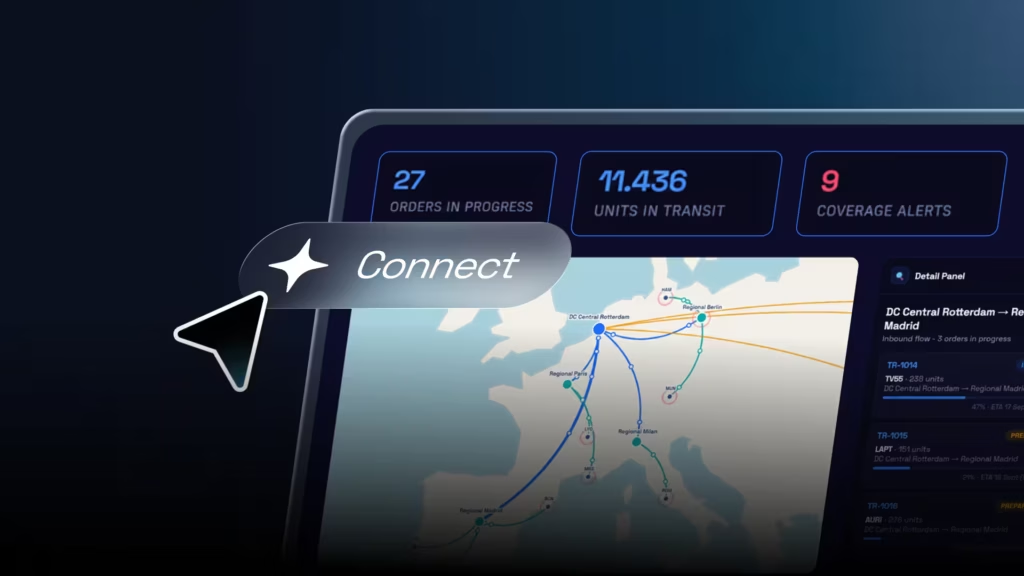
Imperia’s Supply Chain Control Tower is an online tool that lets you build and visualise a complete supply network, from suppliers to central warehouses, regional warehouses and stores.
Using your stock, demand, lead time and planning policy data, the tool automatically generates a multi-echelon replenishment cycle and maps the movements required between the different nodes in the network.
The result is a centralised view where you can analyse inventory levels, stock cover, orders in progress and replenishment requirements.
What is a control tower for?
The larger a logistics network becomes, the harder it is to understand what is happening by looking at each warehouse, supplier or order separately.
A stock issue at a store may originate in a regional warehouse, a shortage at the central warehouse or even a supplier with a long lead time.
A control tower brings these relationships into view from a network-wide perspective.
The aim is to connect information from different levels of the supply chain so you can answer questions such as:
- Where is there a risk of a stockout?
- Which locations have low stock cover?
- Which orders are in transit?
- How much inventory is still due to arrive?
- Which supplier provides each product?
- Which warehouses depend on one another?
- Which stores are generating demand?
- How do replenishment requirements move through the network?
The Supply Chain Control Tower represents these relationships in a single simulation.
Set your planning policy
First, define two parameters:
- Review period.
- Safety stock.
The review period represents the number of days of demand you want to cover in each cycle.
Safety stock adds an extra buffer to protect the network against uncertainty or potential variations.
Together, these parameters determine the planning horizon used by the simulator.
For example:
14-day review period + 7 days of safety stock = 21-day planning horizon
The tool uses this horizon to calculate replenishment requirements for the different nodes.
Define the products in your network
The Product Master contains the items you want to analyse.
Each product is identified by:
- Item number.
- Name.
This item number links the product to the other master data.
The same code can appear later in records for suppliers, stock, stores and demand.
Consistent coding is essential for building the network correctly.
Set up your suppliers
The Supplier Master lets you define which products each supplier can provide.
For each supplier and product combination, you can enter:
- Supplier item number.
- Name.
- Product.
- Geographical location.
- Lead time.
- Minimum order quantity, or MOQ.
If a supplier provides several items, you can repeat its code across multiple rows.
The tool uses this information when a replenishment requirement reaches the upstream level of the network.
If more than one supplier can provide the same product, the simulation selects the one with the shortest lead time.
Build your warehouse network
Next, you can set up central and regional warehouses.
Each warehouse includes:
- Warehouse reference.
- Name.
- Type.
- Location.
- Internal lead time.
Regional warehouses must be linked to a central warehouse.
This relationship creates the second tier of the logistics network.
The tool can then identify which central warehouse should supply each regional warehouse when an inventory requirement is detected.
Link stores to their regional warehouses
Stores are the end points where demand occurs.
For each store, you can set:
- Store reference.
- Name.
- Responsible regional warehouse.
- Location.
- Distribution lead time.
These relationships complete the network structure:
Supplier → Central warehouse → Regional warehouse → Store
You can then analyse the network on a map or in a logical diagram.
Enter available stock at each location
The Stock Master lets you enter the available inventory for each product and location.
You can enter stock for:
- Central warehouses.
- Regional warehouses.
- Stores.
Each record corresponds to a product and location combination.
This makes it possible to represent different quantities of the same item across the network.
Define stores’ daily demand
Demand is entered at store and product level.
For each combination, specify the expected daily consumption in units.
Only items with demand defined at a store are replenished.
The tool uses this information to progressively aggregate requirements across the upstream tiers.
Store demand determines the requirements for regional warehouses.
Those requirements are then consolidated at the central warehouses.
Finally, when a central warehouse does not have enough inventory, purchase orders are generated for suppliers.
Automatically generate multi-echelon replenishment
After completing the master data, select Generate replenishment cycle.
The tool analyses the supply chain, starting at the point where demand occurs.
Tier 1: store
For each store, it calculates the units required to cover the planning horizon.
It compares this target with the available stock.
If replenishment is needed, it generates an order from the relevant regional warehouse.
Tier 2: regional warehouse
Store demand is consolidated at the regional warehouse.
The tool considers downstream requirements and available stock at the regional warehouse.
When necessary, it generates an order from the central warehouse.
Tier 3: central warehouse
The same process is repeated at the central warehouse.
Requirements from the regional warehouses are consolidated and compared with available stock.
If replenishment is needed, the tool finds a supplier that can provide the item.
At this tier, the supplier’s lead time is also taken into account.
The final quantity is adjusted to meet the supplier’s configured MOQ.
Review the network’s main metrics
Once the scenario has been generated, the Control Tower displays five KPIs.
Orders in progress
Shows how many replenishment movements have been generated across the network.
Units in transit
Shows the total quantity covered by all orders.
Supplier purchase orders
Shows how many purchase orders need to be placed with external suppliers.
Stock cover alerts
Shows how many nodes have fewer days of stock cover than the safety stock threshold you set.
Planning horizon
Shows the total number of days used in the simulation.
These metrics provide an initial overview of the network’s overall status.
Visualise your supply chain on a map
The Map view displays all nodes by geographical location.
You can view:
• Suppliers.
• Central warehouses.
• Regional warehouses.
• Stores.
• Replenishment flows.
You can switch between European and global views, move around the map and zoom in or out.
Flows with orders in progress appear as connections between the different points in the network.
Analyse the structure in a diagram
As well as the geographical view, you can select the Diagram view.
This view removes physical distance and arranges the nodes according to their role in the supply chain.
It makes it easier to see:
• Which suppliers provide products to each central warehouse.
• Which regional warehouses depend on each central warehouse.
• Which stores are linked to each regional warehouse.
• How requirements move through the network.
It is particularly useful when you want to analyse the operating structure without geography affecting the view.
Filter the whole network by product
The Control Tower includes filters by item number.
Select a product to highlight only the nodes and flows relevant to that item.
This lets you analyse its supply chain on its own.
For example, you can check:
- Which supplier provides it.
- Which warehouses have it in stock.
- Which stores generate demand.
- Which movements are in progress.
- Where stock cover is at risk.
In networks with many items, this filter makes analysis much easier.
Analyse stock, demand and cover at each node
Select a warehouse or store to open the Detail panel.
For each product, you can view:
- Available stock.
- Expected demand during the review period.
- Days of stock cover.
Stock cover is calculated by dividing available stock by daily demand.
For example, if a store has 100 units of an item and sells 10 units a day, it has around 10 days of stock cover.
This metric helps you quickly identify which locations have enough inventory and which may be at greater risk.
Identify stock cover alerts
The tool compares current stock cover with the number of safety stock days you have set.
When a node has fewer days of stock cover than the safety stock threshold, it is counted as an alert.
This helps you focus on locations where available inventory is below the desired level of protection.
An alert does not necessarily mean a stockout is imminent, but it does signal that the node may need closer attention.
Review orders moving through the network
The simulation generates orders to represent the movements required between the different tiers.
You can view:
- Order ID.
- Product.
- Quantity.
- Origin.
- Destination.
- Status.
- Progress.
- ETA.
- Days remaining.
Supplier orders may have statuses such as:
- In production.
- At sea.
- At customs.
- Final delivery.
Internal movements may have statuses such as:
- Preparing.
- In transit.
- Out for delivery.
This provides a visual representation of the different stages inventory passes through.
Analyse replenishment flows
You can also select the connections between nodes directly.
The Detail panel then shows the orders moving along that flow.
This lets you examine specific relationships, such as:
• Supplier → Central warehouse.
• Central warehouse → Regional warehouse.
• Regional warehouse → Store.
If there are no orders in a flow, downstream stock is sufficient to cover the requirements calculated for the planning horizon.
Compare different supply chain scenarios
A control tower is useful for more than viewing a single network configuration.
You can also change the parameters and see how the network responds.
For example, you can:
- Increase demand for an item.
- Reduce stock at a warehouse.
- Increase a supplier’s lead time.
- Raise safety stock.
- Change the review period.
- Adjust the MOQ.
- Assign a store to a different regional warehouse.
- Change the warehouse structure.
After each change, you can generate the cycle again and see how orders, stock cover and replenishment requirements change.
Understand your supply chain dependencies
One of the main benefits of viewing the whole network is seeing how a local issue can spread across other tiers.
Higher demand at certain stores can create new requirements at the regional warehouse.
Those requirements may then trigger transfers from the central warehouse.
If the central warehouse also has insufficient inventory, the process ultimately results in a purchase order to the supplier.
The Supply Chain Control Tower lets you view this chain of dependencies in one place.
Get an end-to-end view of your replenishment network
The Supply Chain Control Tower brings together inventory, demand, suppliers, warehouses, stores and orders in a single visualisation.
You can use it to analyse:
- Your network structure.
- Available stock at each location.
- Expected demand.
- Days of stock cover.
- Inventory alerts.
- Replenishment requirements.
- Supplier purchase orders.
- Internal movements.
- Units in transit.
- Dependencies between the different tiers.
Use the tool to test different scenarios, identify risks and understand how your supply network behaves before making planning decisions.